How to handle long pause in dialog flow
April 17, 2024 No Comments

Why does audio need to be included in interactions between users and bots?

In a conversational AI-enabled voice bot, in case of obtaining data from a database or requesting information from LLM models like ChatGPT, Claude, Gemini, or LLaMA, there’s inevitably a delay while waiting for updates or responses, often leading to an awkward pause in the interaction. To address this issue effectively, we implemented audio cues as a means to confirm the arrival of the response, ensuring a smoother interaction between the user and the Bot. If a response is received, it’s promptly displayed; otherwise, we persistently loop the audio to attempt retrieval again.

How do we add audio until we get the response?

Here’s a step-by-step guide:

1. Dialogflow Setup

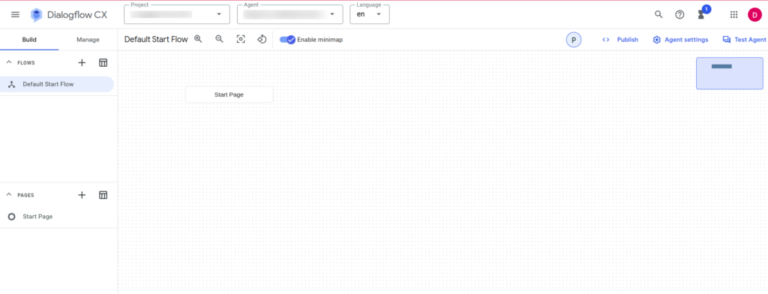
Sign in to the Dialogflow CX console and create a new agent. Give the Agent name as you like. You will find the below screen for the new agent:

Dialog Flow

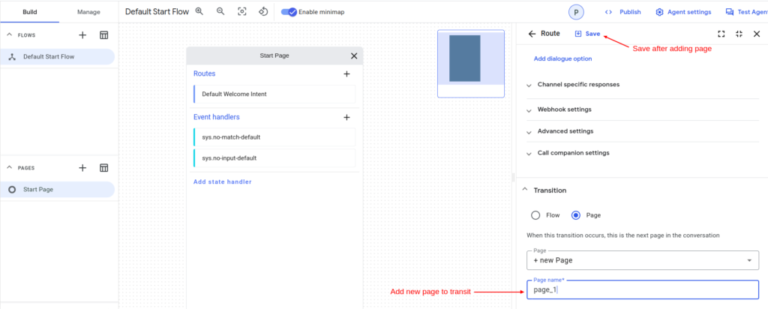
Now navigate to ‘Start Page’. Click on the ‘Default Welcome Intent’ and add a new page of a name you like we have used ‘page_1’. Click on the Save after adding a new page.

Start page

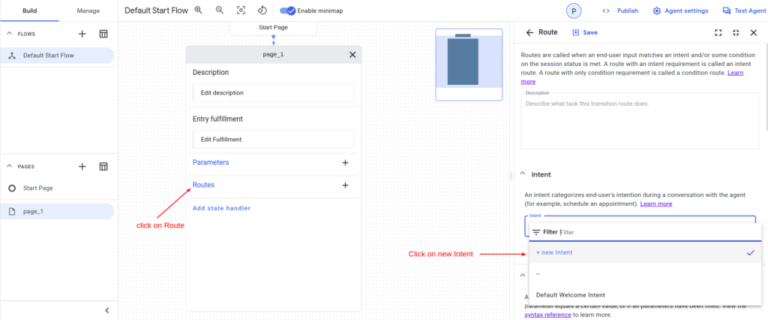
Navigate to ‘page_1’. Click on the Routes to add a new route and create a new intent ‘intent_1’.

Routes

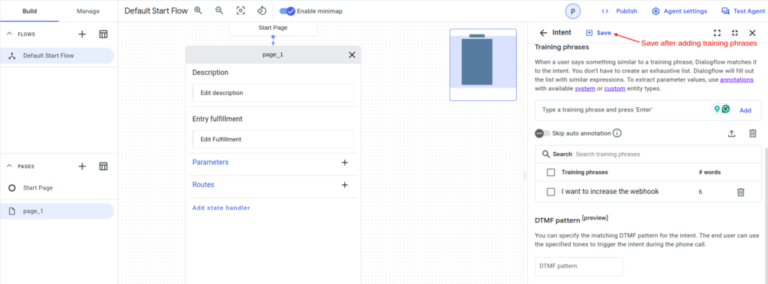
In ‘intent_1’, add Training Phrases like ‘I want to increase the webhook’ and Save the intent.

Training Phrases

Now, Enable webhook (create webhook if not created) and add webhook with tag ‘response’. Most importantly, enable ‘Return partial response’. Add a new page ‘page_2’ and Save after adding a new page.

Return partial response

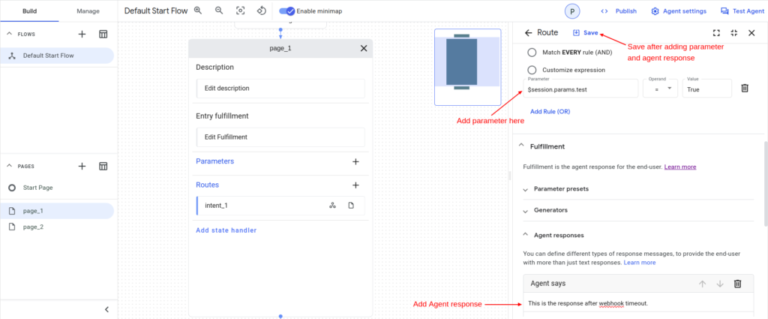
Again add a new route in ‘page_1’. In Condition, add a parameter ‘$session.params.text = True’ and Save after adding a parameter.

Condition

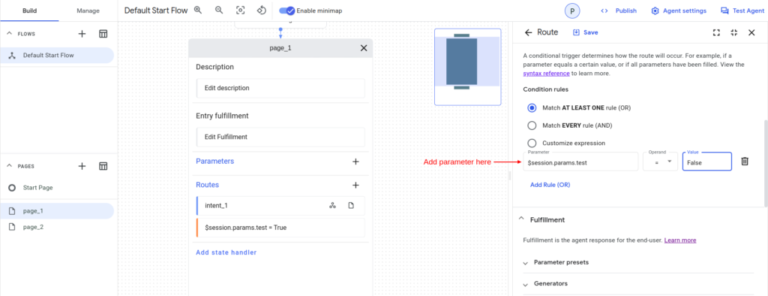
Again add a new route in ‘page_1’. In Condition, add a parameter ‘$session.params.text = False’.

Condition=false

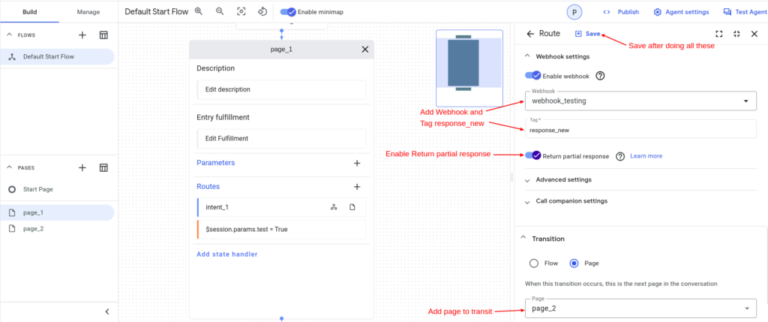
Now, Enable webhook and add webhook with tag ‘response_new’. Most importantly, enable ‘Return partial response’. Add a new page ‘page_2’ and Save after adding a new page.

Return partial response

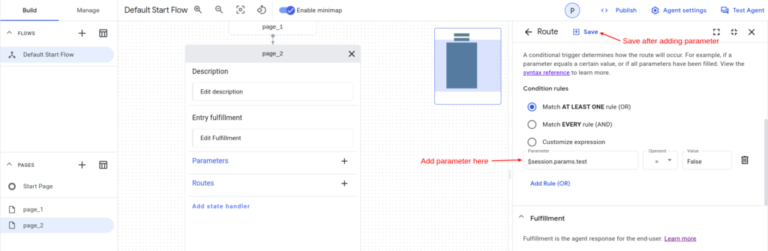
Navigate to ‘page_2’. Click on the Routes to add a new route and add a parameter ‘$session.params.text = False’.

Submit

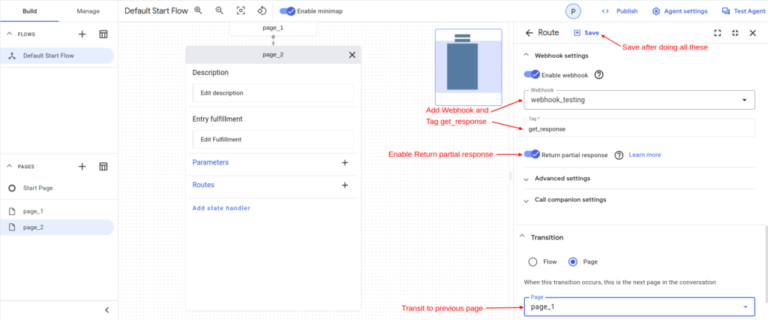
Now, Enable webhook and add webhook with tag ‘get_response’. Most importantly, enable ‘Return partial response’. Add a previous page ‘page_1’ and Save after adding a previous page.

get responce

2. Webhook Code
				
					
from flask import Flask, request, jsonify
import time
from datetime import datetime, timedelta
import _thread

app = Flask(__name__)

# Webhook endpoint to handle POST requests
@app.route('/webhook', methods=['POST'])
def webhook():
    # Get the JSON data from the request
    data = request.get_json(silent=True, force=True)
    # Extract the tag from the JSON data
    tag = data["fulfillmentInfo"]["tag"]
    
    if tag == 'response':
        # Start a new thread to execute parameters_sending function
        _thread.start_new_thread(parameters_sending,())
        print("started...")
        # Prepare the response JSON
        reply = {
           "fulfillmentResponse": {
               "messages": [
                   {
                       "text": {
                           "text": [
                               '''<speak>Please Hold a line <audio src="https://commondatastorage.googleapis.com/codeskulptor-demos/pyman_assets/intromusic.ogg"></audio>
                            </speak>'''
                           ]
                       }
                   }
               ]
            },
            "sessionInfo": {
                "parameters": {"test": "False"}
            }
        }
        return jsonify(reply)
    
    if tag == 'response_new':
        # Similar response for a different tag
        return {
           "fulfillmentResponse": {
               "messages": [
                   {
                       "text": {
                           "text": [
                               '''<speak>Please Hold a line...<audio src="https://commondatastorage.googleapis.com/codeskulptor-demos/pyman_assets/intromusic.ogg"></audio>
                            </speak>'''
                           ]
                       }
                   }
               ]
           },
            "sessionInfo": {
                "parameters": {"test": "False"}
            }
        }
    
    if tag == "get_response":
        # Simulate delay and then fetch content from a file
        time.sleep(4.5)
        print("entering get response")
        with open("user_name.txt", "r") as file:
            content = file.read().strip()
            print(content)
            if content:
                # If content exists, prepare response with the content
                reply = {
                    "fulfillmentResponse": {
                        "messages": [
                            {
                                "text": {
                                    "text": [
                                        f'Message received: {content}'
                                    ]
                                }
                            }
                        ]
                    },
                    "sessionInfo": {
                        "parameters": {"test": "True"},
                    },
                }
                # Clear the content of the file
                with open("user_name.txt", "w") as file: 
                    file.write("")
                return jsonify(reply)
            else:        
                return {
                    "sessionInfo": {
                        "parameters": {"test": "False"},
                    },
                }

# Function to perform a background task
def parameters_sending():
    time.sleep(20) 
    print("completed")
    # Write a message to a file
    with open("user_name.txt", "w") as file:
        file.write("Your Testing Is Successfully Executed.")
 
# Main function to start the Flask app
if __name__ == '__main__':
    app.run(debug=True)


3. Twilio Integration

We have already made the Blog on integrating Twilio in Dialogflow CX. Please check the Blog Integrating Twilio With Dialogflow CX To Enable Voice Calls and follow the steps to complete the integration. 

For a practical demonstration of this technique, you can view a recorded demo here:

This video will showcase how audio cues seamlessly fill the gaps while the bot retrieves information, creating a smoother user experience.

Conclusion

By implementing audio cues and utilizing Dialogflow CX’s return partial response feature, we can significantly improve the user experience during interactions with bots that involve waiting for data or responses from external systems. This approach helps bridge the silence during pauses and keeps the user engaged in the conversation.

Need Help with Audio in Voice Bots?

We can guide you in integrating audio cues to enhance your voice bot’s user experience. Share your requirements, and let’s discuss how we can support your project!

Write a comment

Your email address will not be published. Required fields are marked *

Want to talk to an Expert Developer?

Our experts in Generative AI, Python Programming, and Chatbot Development can help you build innovative solutions and scale your business faster.

Thanks!